mobile payment imagemobile payment imagemobile payment image

01.  project description

Mydoh Design System

Contextual Messaging Component Revamp

An audit, consolidation and redesign of specific components in Mydoh’s design system, focusing on creating a more cohesive component style across the different messaging components in the Mydoh app. This improvement was aimed at creating a uniform look across team designs, and information presentation to user while driving home familiar patterns for users so they don’t miss informations they should be aware of.

02.  project info

Role

Product Designer: Content and Design

Timeline

November 2023 - Dec 2023

Team

Strategy: Karen (Senior Product Designer)

03.  CONTEXT: The BEFORE

Before the redesign and consolidation of all the messaging components in the Mydoh app and team files, our app had many different types of alerts and notification messaging styles. Designers were creating custom styles for notifications, consequentleading to increased design debt and inconsistency in designs, with no standardized guidelines for notification design.

This led to a lot of inconsistency across our app, making it challenging to maintain a cohesive design language

04.  THE TASK

How might we...

...consolidate our diverse notification messaging types and styles into a cohesive system, and establish a clear framework that all team members can follow while offering our users a clear, and intuitive experience?

05.  THE REFRESH: A NEW LOOK

I proposed three notification components that covered all current possible use-cases within the mydoh app:

  • In-line banner
  • Toasts
  • Promo banners

Consolidating the different types into these three will ensure clarity in terms of where, when, and how to use each style and type of notification within the Mydoh app.

AFTER: STREAMLINED LOOK

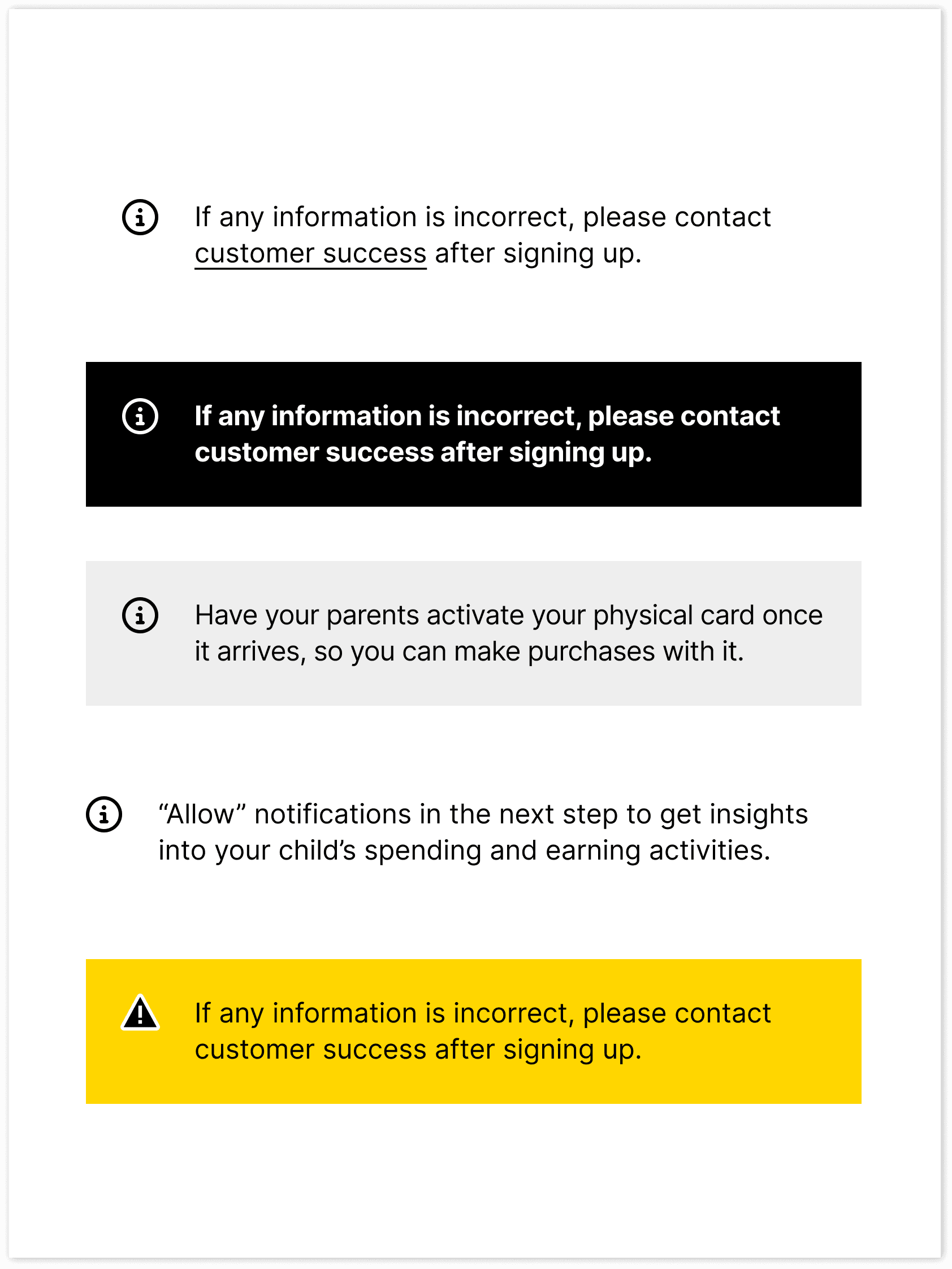
In-line banner

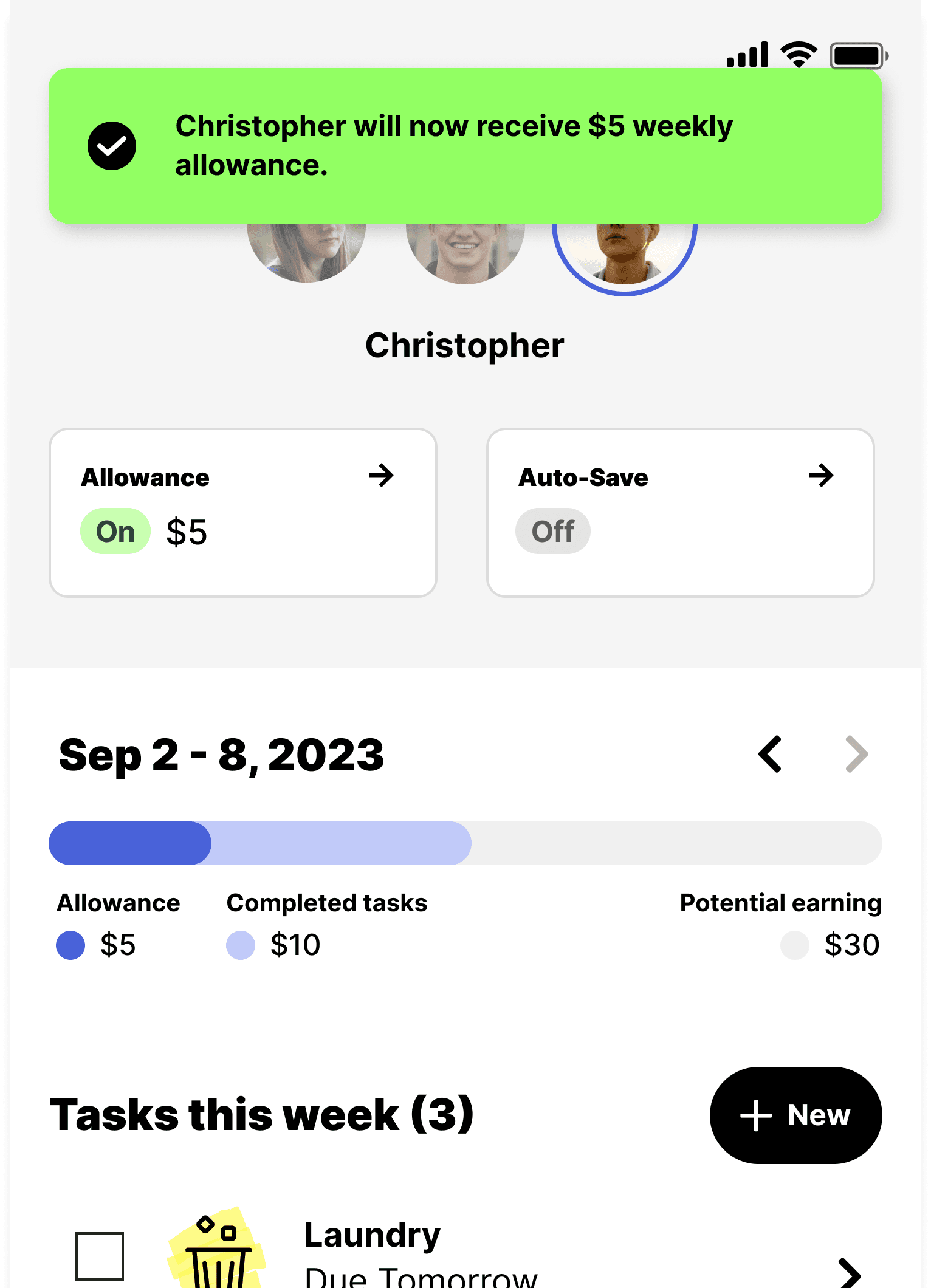
Toast

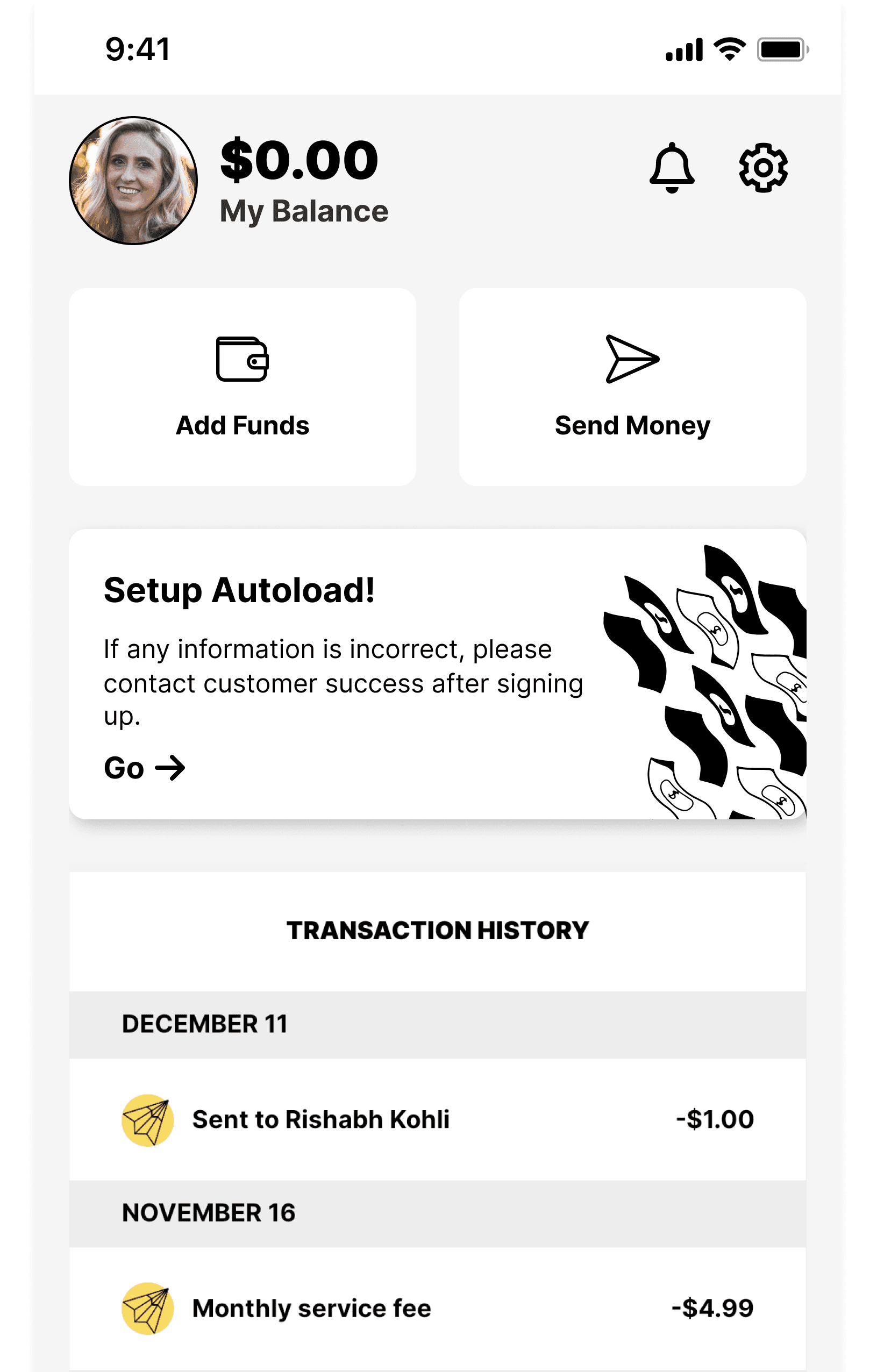
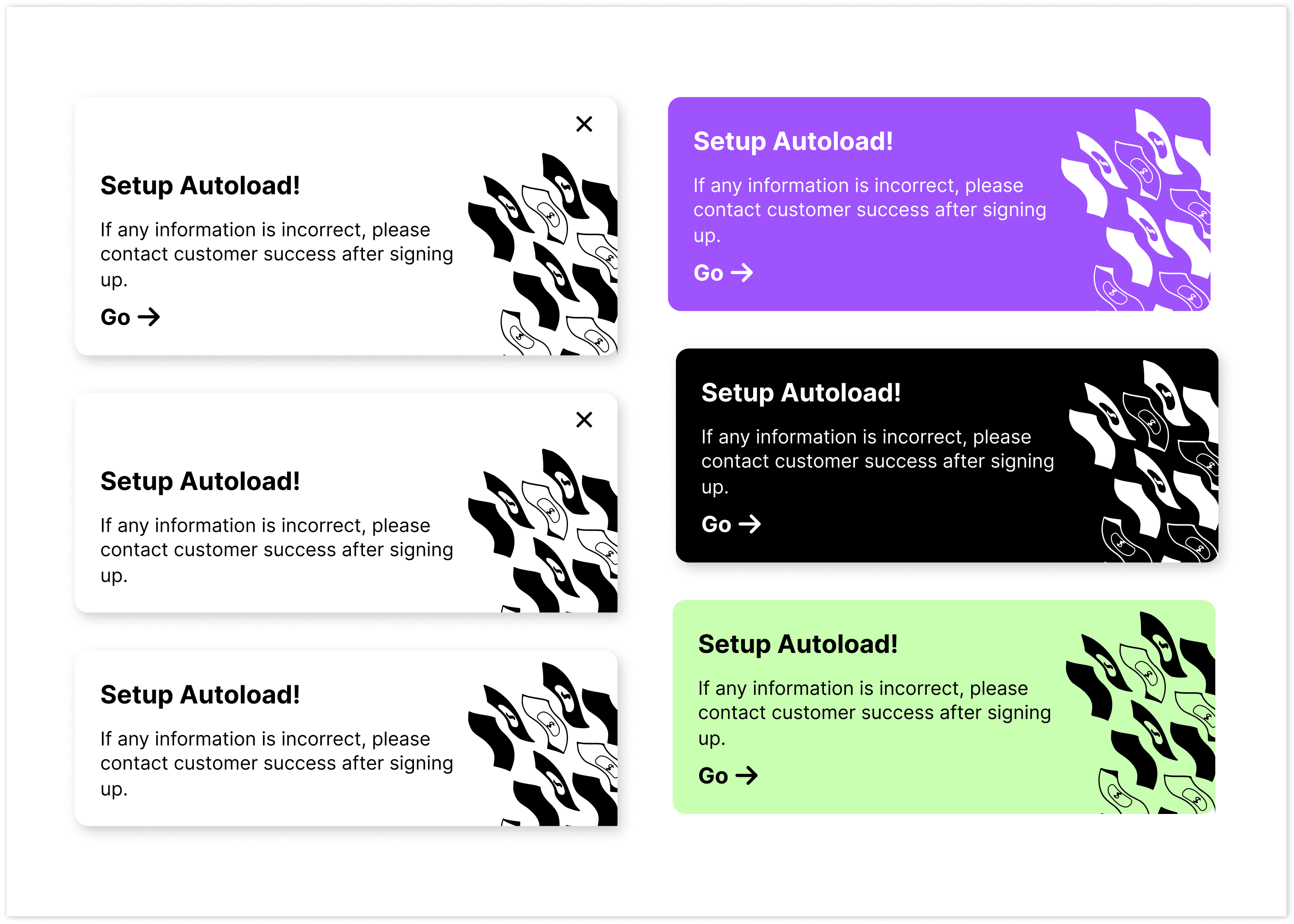
Promo banners

06.  IMPACT & RESULTS

Boilerplate documentation

Detailed styleguide and guidelines on component usage: when to use which, where and how. Thus laying the foundation for future component documentation.

Component request system

Proposed a request system through which new components additions or creation will have to go through before being introduced into the Design system.

Unified look & efficiency

With the use of variants, design time is faster and more efficient. Saving component redesign effort.

07.  DISCOVERY: IDENTIFYING PAIN POINTS IN CURRENT SYSTEM

Before starting out with re-design of the components, looked into highlighting the painpoints from the business and team/user perspectiv. This was focused on highlighting the current painpoints we had with messaging components at Mydoh, and the needs within our internal teams.

Users

Insights

Painpoints & needs

Inconsistency in messaging can cause confusion and uncertainty about the importance and urgency of notifications.

Users need a unified style that reliably informs users about the importance and context of the message they are receiving.

Overwhelming number of notifications can lead to notification fatigue, causing users to ignore potentially important messages.

Users need only essential information to be communicated, reducing the overall number of interruptions.

Difficulty in distinguishing between actionable items and informational messages.

Users need distinctive designs making it clear which require user action and which are for information purposes only.

Business

Insights

Painpoints & needs

Inconsistent messaging styles: dilute brand identity and reduce the effectiveness of communication.

Business need a unified messaging system that aligns with the brand's voice and identity.

Potential reduced engagement from users missing or ignoring important notifications.

Business need an optimized notification strategy that ensures high visibility and engagement with important messages

Custom notifications for different features may increase development time and resource allocation.

Business need a scalable and reusable notification framework that reduces development time, and allows for easy updates and maintenance across the platform.

08.  PRINCIPLES: DESIGN GUIDELINES

Here are some guidelines that grounded the component redesign

Relevance

Every notification should be meaningful and timely to the user, with clarity on purpose without need for additional context.

User control

Users should have control over the types of notifications they receive and how they are presented, and to the extent possible.

Scalability

The system should be designed to accommodate future types of notifications or changes in content without significant redesign.

09.  QUICK WINS: COMPONENT RESKINNING

COMPONENT AUDIT: Quick wins vs Broader Initiatives

I worked with the senior product designer to break down all of the different notifications type and styles we have in the app. We assessed each component and came up with a spreadsheet of all the available notification messaging components that currently exists within the Mydoh app.

We considered factors like:

  • what needs fixing
  • what needs to go
  • subtle enhancements; quick fixes

01 What type of notification is this

02 Where is the notification currently being placed?

03 What presentation style does this notification use

The focus was on a quick fix, without a complete redesign. For example if a message was purely informational and we didn’t want a user to miss it, what quick enhancement can we make to it which will be on par with an existing style we found suitable based on the context.

COMPONENT RESKIN

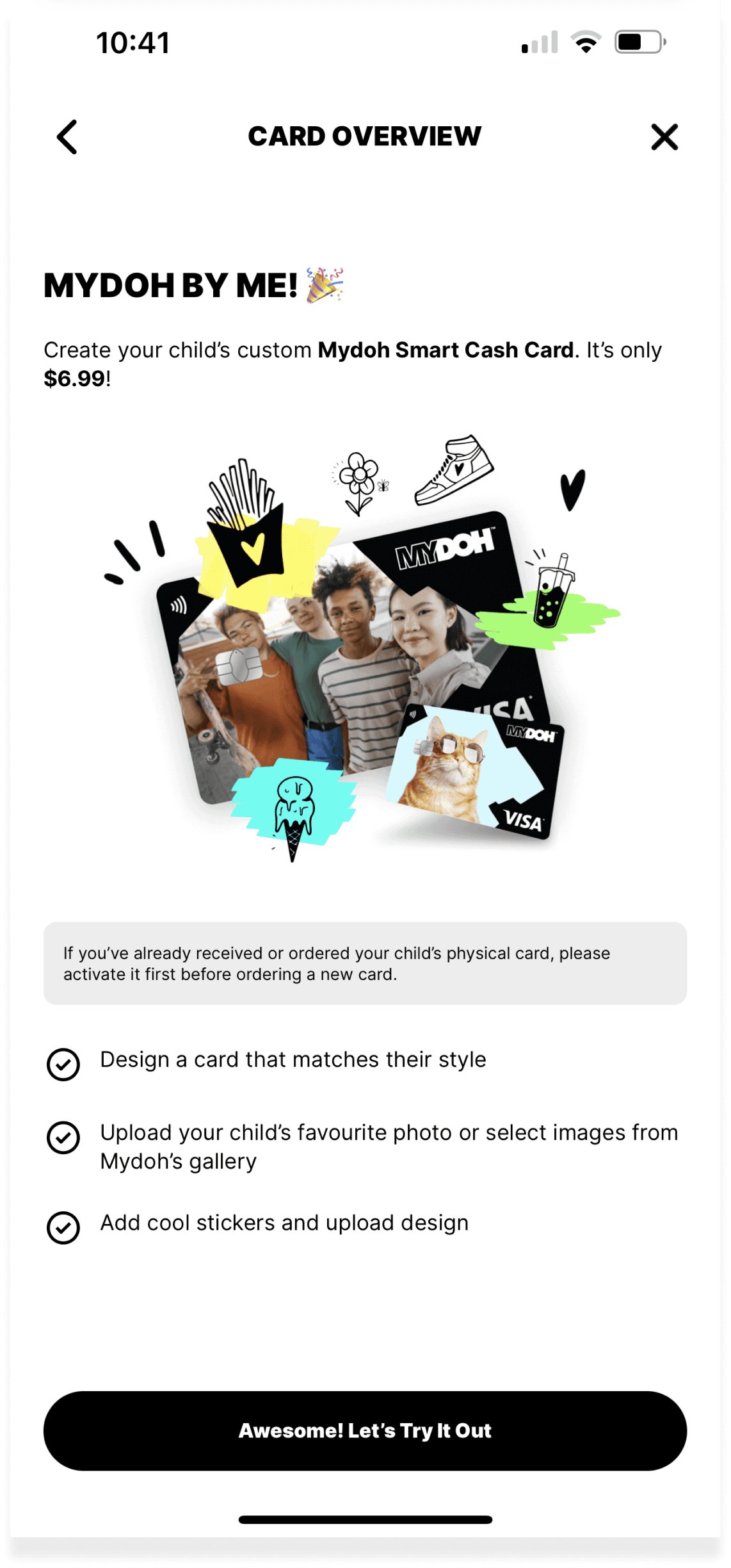
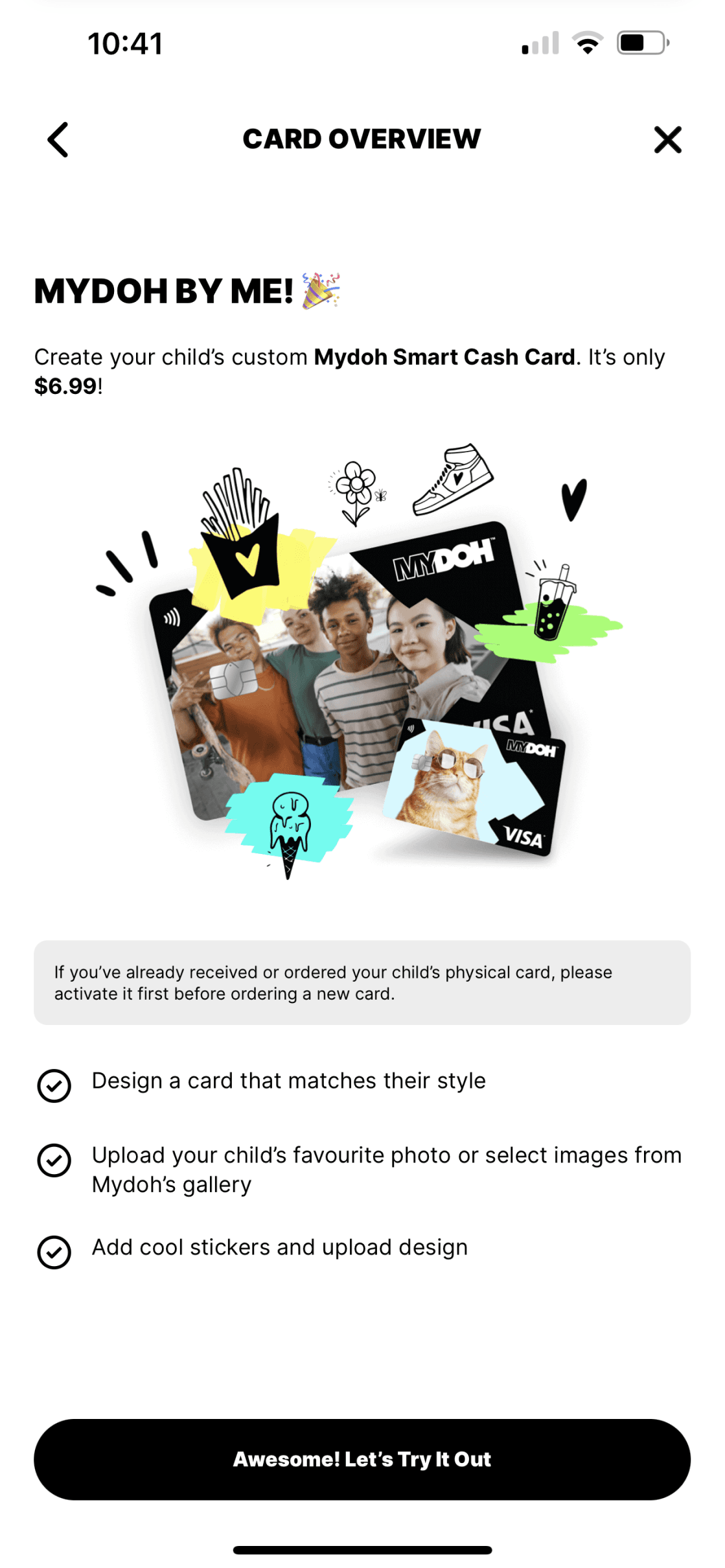
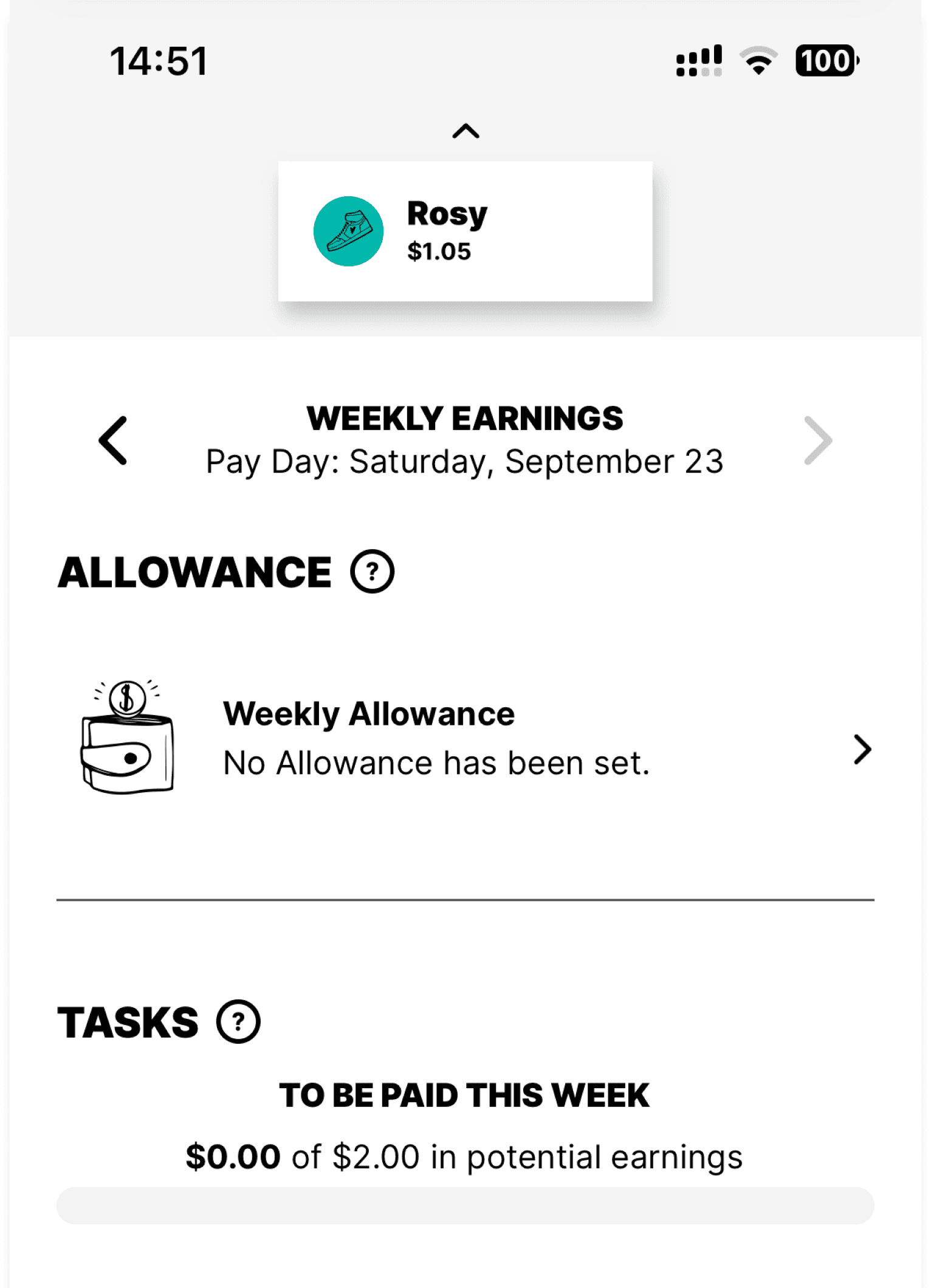
Before

After

10.  COMPONENT CONTEXT AND GUIDELINES

COMPONENT DOCUMENTATION

After presentation of the three selected messaging components, I developed a documentation guideline on the use of all three components. I framed the how-to using a user story perspective for ease of understanding.

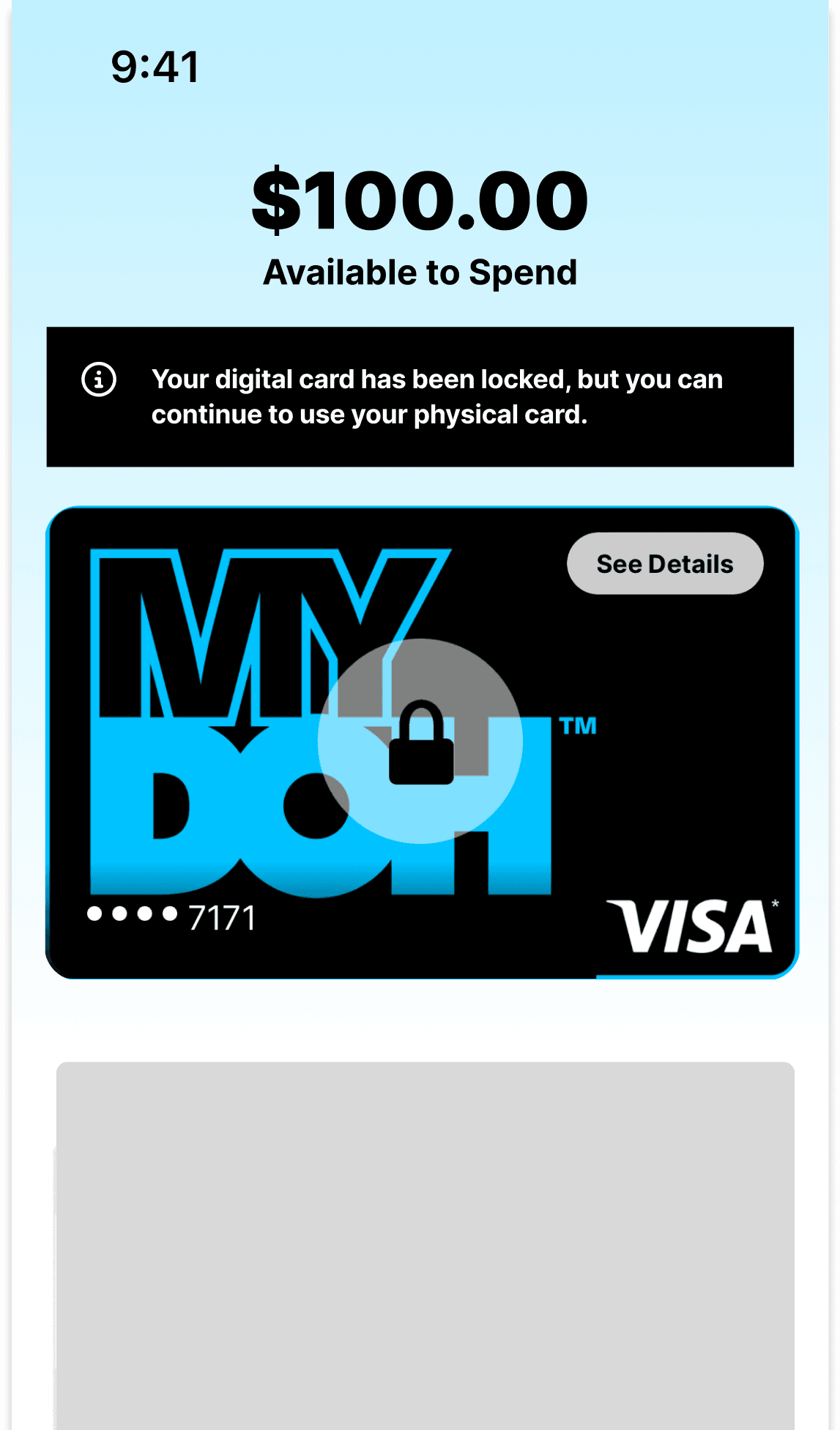
In-line banners

As a user, I want to receive information and status updates to ensure I am informed of any issues or confirmations that require my attention.

Component: In-line Banner

Placement: Fixed at the top of a screen or adjacent to the related item.

Surface: Universal – applicable across various screens where user actions take place.

Content guidelines: Should convey the message concisely, typically in one sentence. Use clear and actionable language, and include links if further action is required by the user.

Purpose: Persistent Banners provide immediate, non-disruptive feedback on the completion or status of an action. They remain visible until the issue is resolved or the status is updated.

Interaction: Non-dismissible, requiring user action for resolution. May include links for users to take necessary steps.

Persistence: Remains on screen until the relevant message is resolved or the action is completed.

Accessibility: Ensure text contrasts sharply with the black background for readability and adheres to accessibility standards.

Measured via: User engagement with the banner's links and resolution rate of the issues highlighted by the banner.
In-line banners

Component variants

Toasts

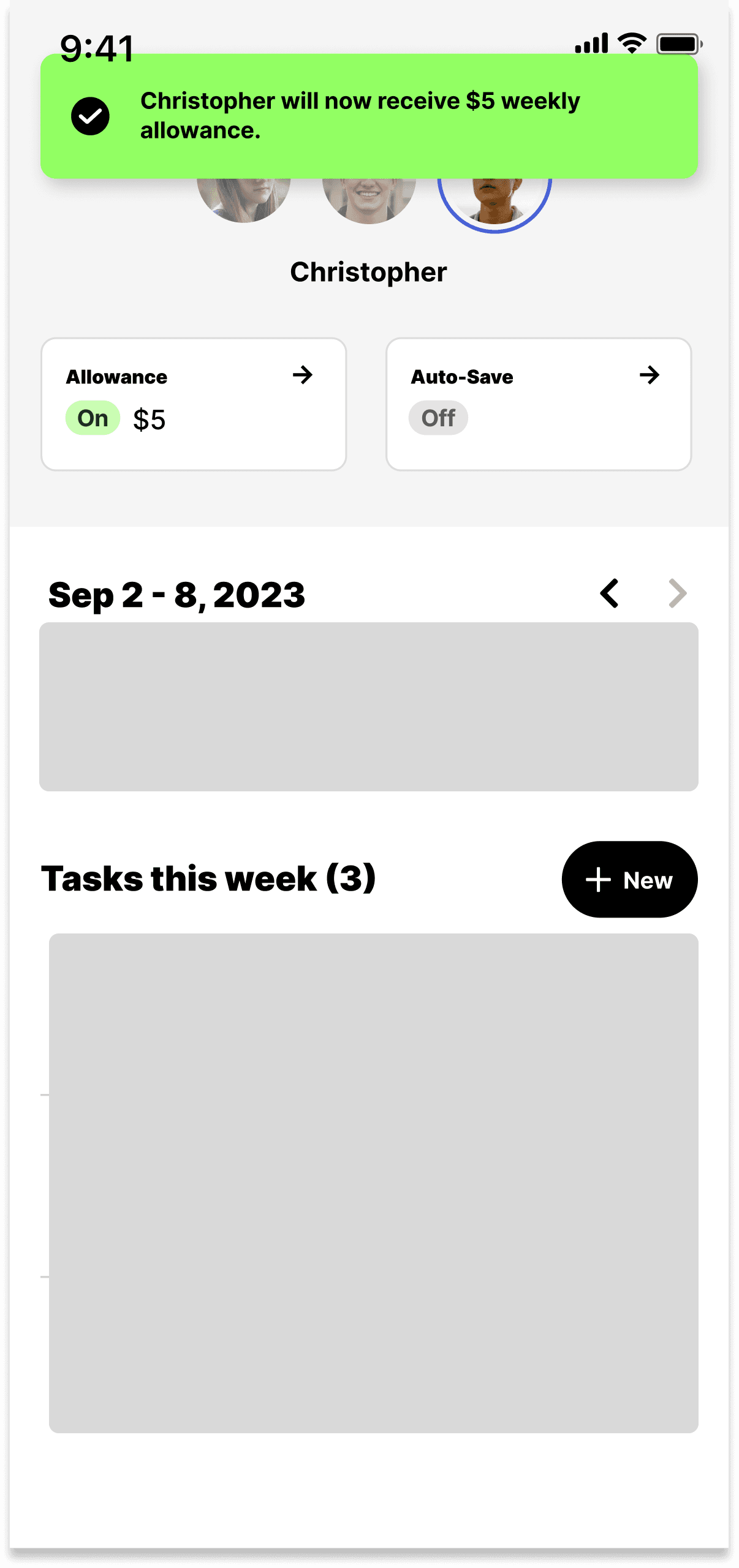
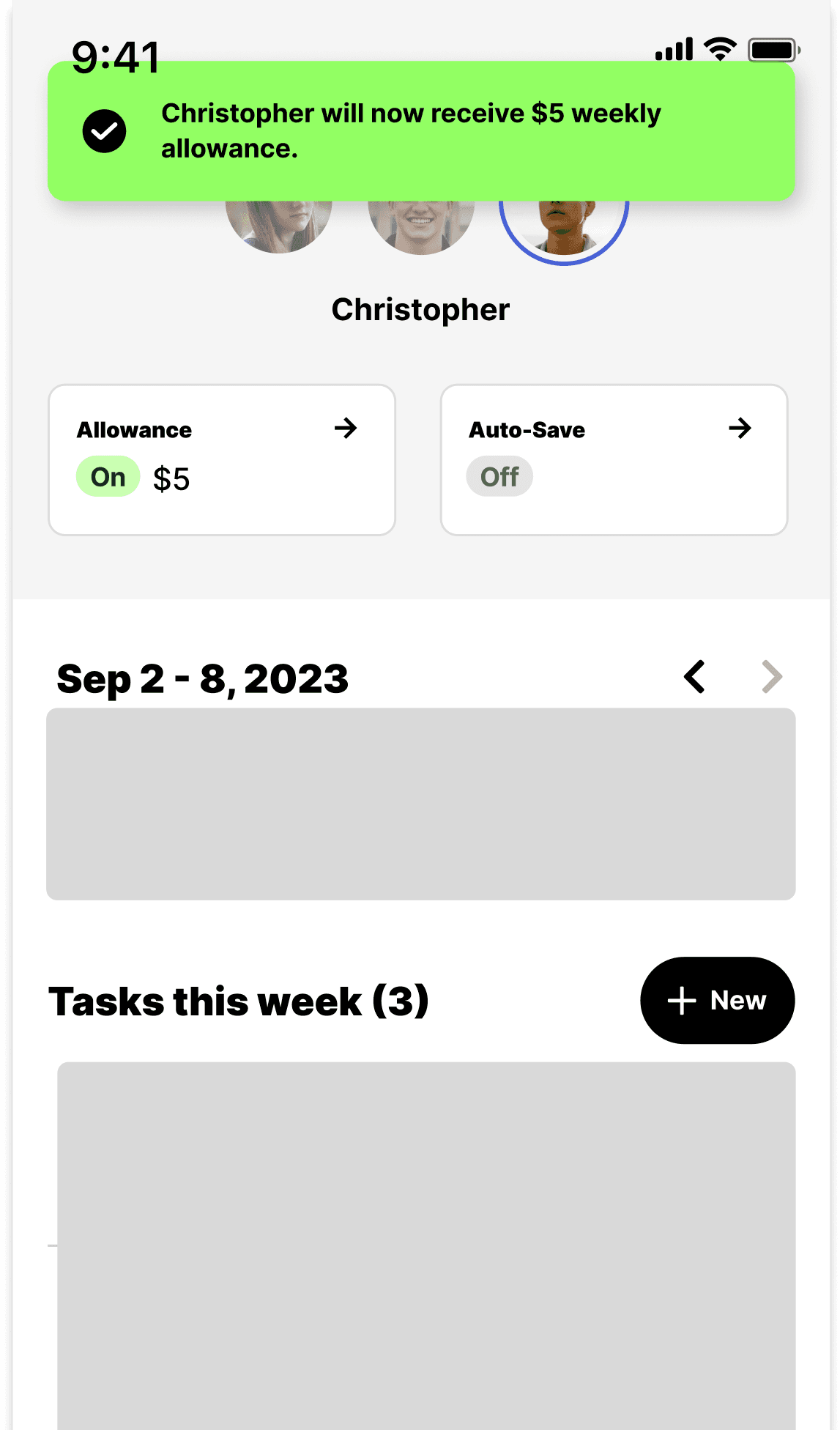
As a user, I want to receive immediate confirmation or feedback on my actions so that I know the status of my tasks without interrupting my flow.

Component: Toast notification

Placement: Appears at the top of the screen.

Surface: Universal – can be triggered on various screens following user actions.

Content guidelines: Brief messages delivering confirmation or feedback related to recent user actions. Limited to two lines of text without any header.

Purpose: Persistent Banners provide immediate, non-disruptive feedback on the completion or status of an action. They remain visible until the issue is resolved or the status is updated.

Interaction: Non-modal and time-limited, appearing temporarily before automatically disappearing after a few seconds.

Visibility Duration: Typically 5 seconds to ensure the user has enough time to read the message without having to manually dismiss it. action is completed.

Accessibility: Ensures high contrast text for readability and compliance with accessibility standards.

Measured via: User acknowledgment rate (if actionable) and non-interaction rate, to ensure messages are noticed but not disruptive.

TOASTS

Toast

Two states:
Failed and success state

Positioning:
Sticky top

Persistency:
Auto dismiss after 5 seconds However, affordance was also in question

Promo banners

As a user, I want to be aware of new or existing features that could enhance my experience or provide additional value to my use of the platform.

Component: Promo banners

Placement: Strategically positioned to be relevant to the content it's promoting, without obstructing user workflow.

Surface: Selective – displayed within contextually relevant areas of the platform where the promotion is most likely to be of interest to the user.

Content guidelines: Brief messages delivering confirmation or feedback related to recent user actions. Limited to two lines of text without any header.

Purpose: Promo banenrs are designed to attract user attention and interest towards new or underused features that could benefit the user.

Interaction: May include a call-to-action link or button guiding users to learn more or engage with the feature.

Persistence: Remains visible until the user interacts with it or navigates away from the related content.

Accessibility: Adheres to accessibility standards for visibility and interaction, with clear and concise language.

Measured via: Engagement rates with the promotional content, including click-through and conversion rates to assess the effectiveness of the banner.

PROMO BANNERS

Promo banners

View full guide documentation guide here

Contextual Message

Banners

A banner is a contextual message used to communicate information to the user. Banners are usually time-based or dismissible by the user.

Usage

Style

Specs

Accessibility

Designing with banners

When to use

Use banners to inform users of important status, updates or product information. There are two major use cases for banners:

Task-generated banners

Task-generated banners are initiated in response to user action during a specific task. They provide immediate response or feedback to a user completed action and are usually time-based/self-dismissing.

System-generated banners

These are banners initiated by the system or application independent of the user action. They are used when there’s a need for a persistent static container to convey information to the user. It is usually dismissible by the user.

Usage guidelines

Use banners at the top of the screen to display context message to the user.
Banners should not cover the content of the screen or prevent user from accessing content on the screen.
Banners should appear one at a time and disappear when no longer required.

Anatomy

How to use

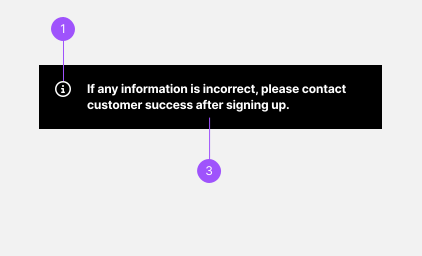
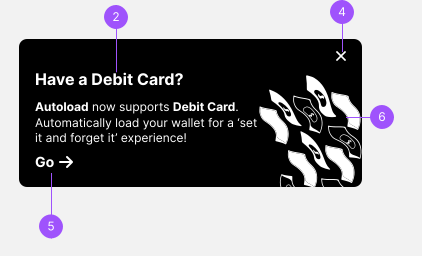
A banner at the minimum, consists of an icon and a message.

  1. Icon(optional): Informs users of the type of notification.
  2. Heading/Title(optional): gives users a quick summary of the notification.
  3. Message: gives users a provides brief description or additional information for user.
  4. Close button (optional): allows user to dismiss the notification.
  5. Action (actionable/banner only, optional): ghost with icon or primary button that allows user to address the notification
  6. Illustration (actionable/banner only): aids the description to give users a visual understanding of the type of notification at a glance.

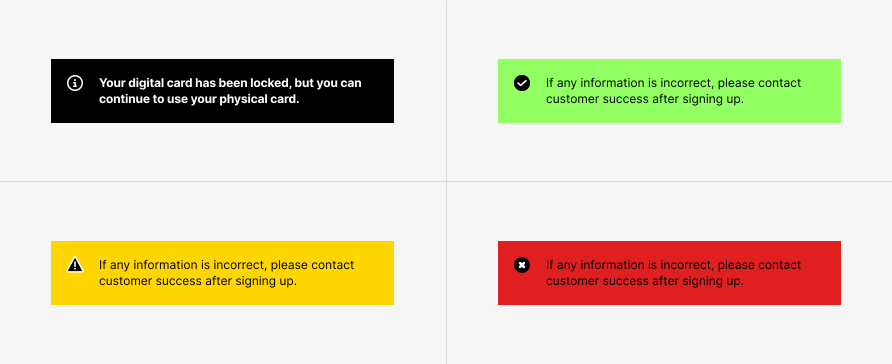
Banner status and types

What to use: hierarchy

There are four different states of a banner, with each having its own meaning and use of context. Primarily, we use the informational state to convey information to the user. The different states help convey the type of information presented to the user. Each state has a corresponding color and icon to provide a clear, intuitive and consistent experience to the user.

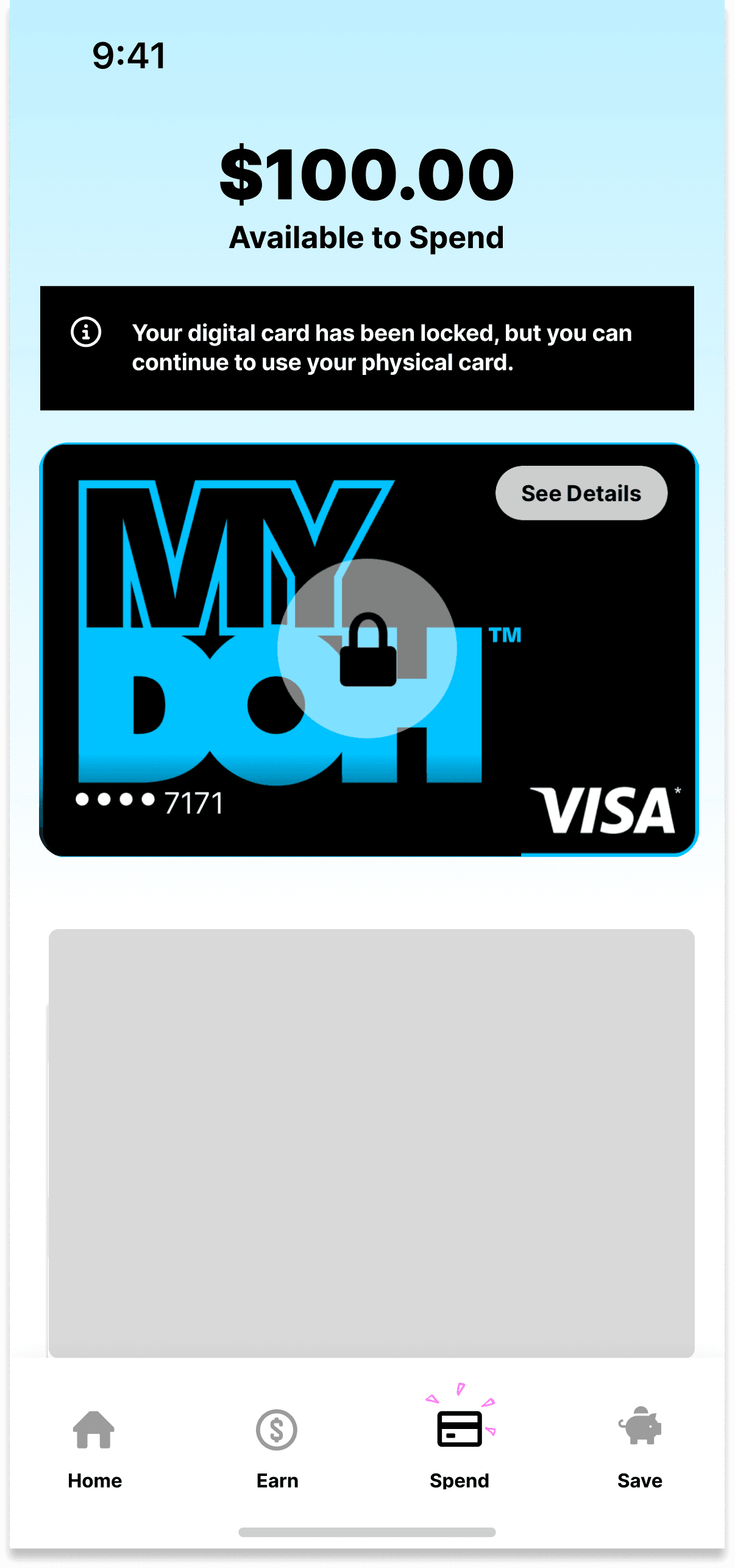
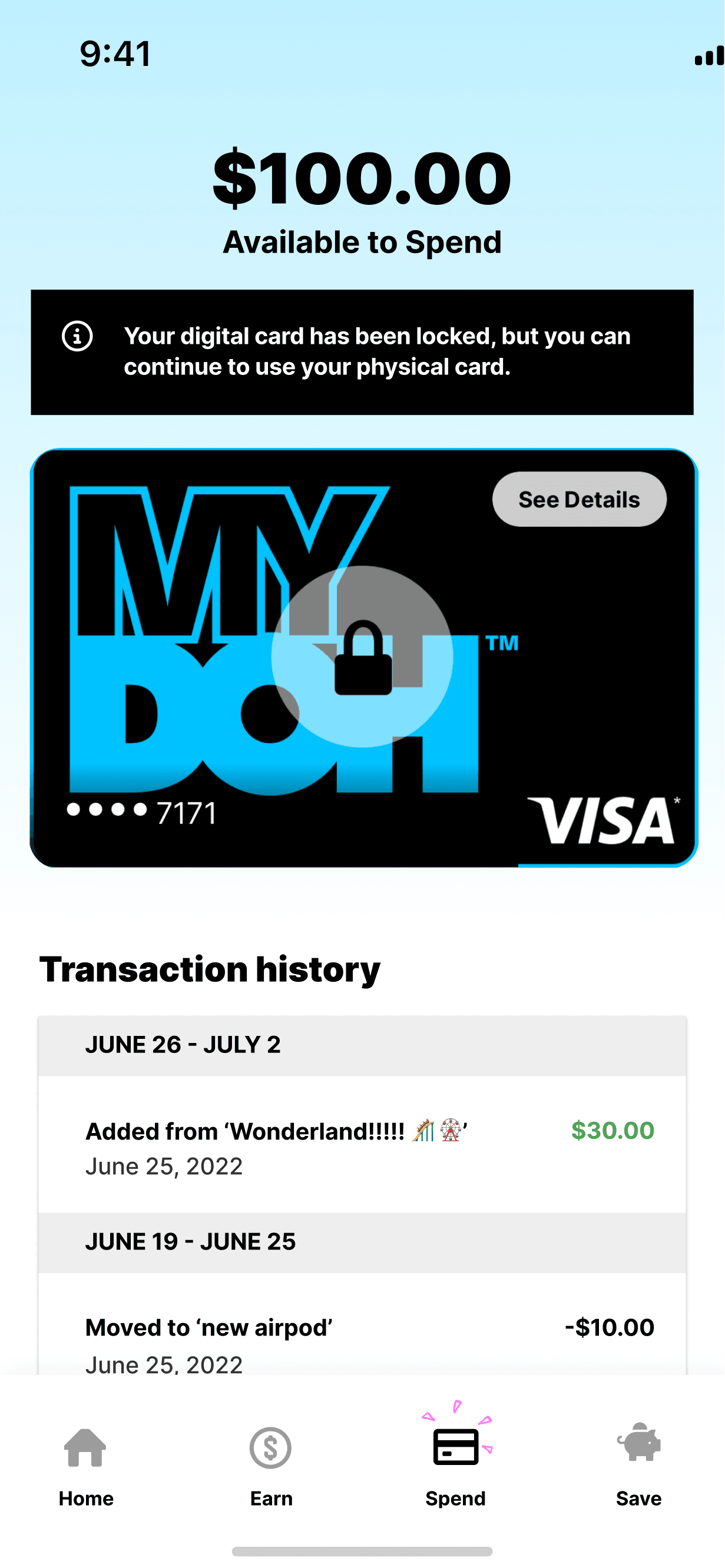
Your digital card has been locked, but you can continue to use your physical card.

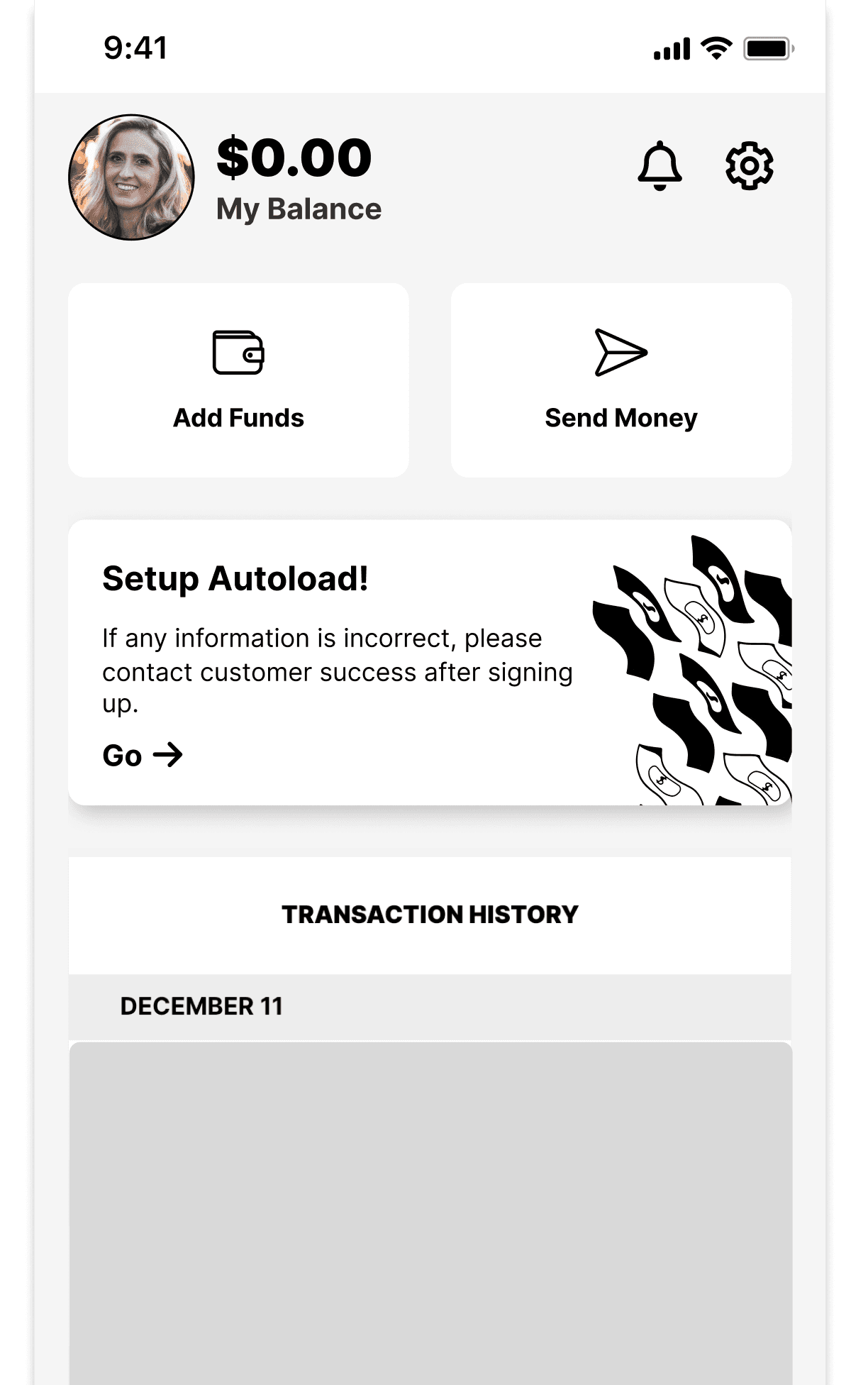
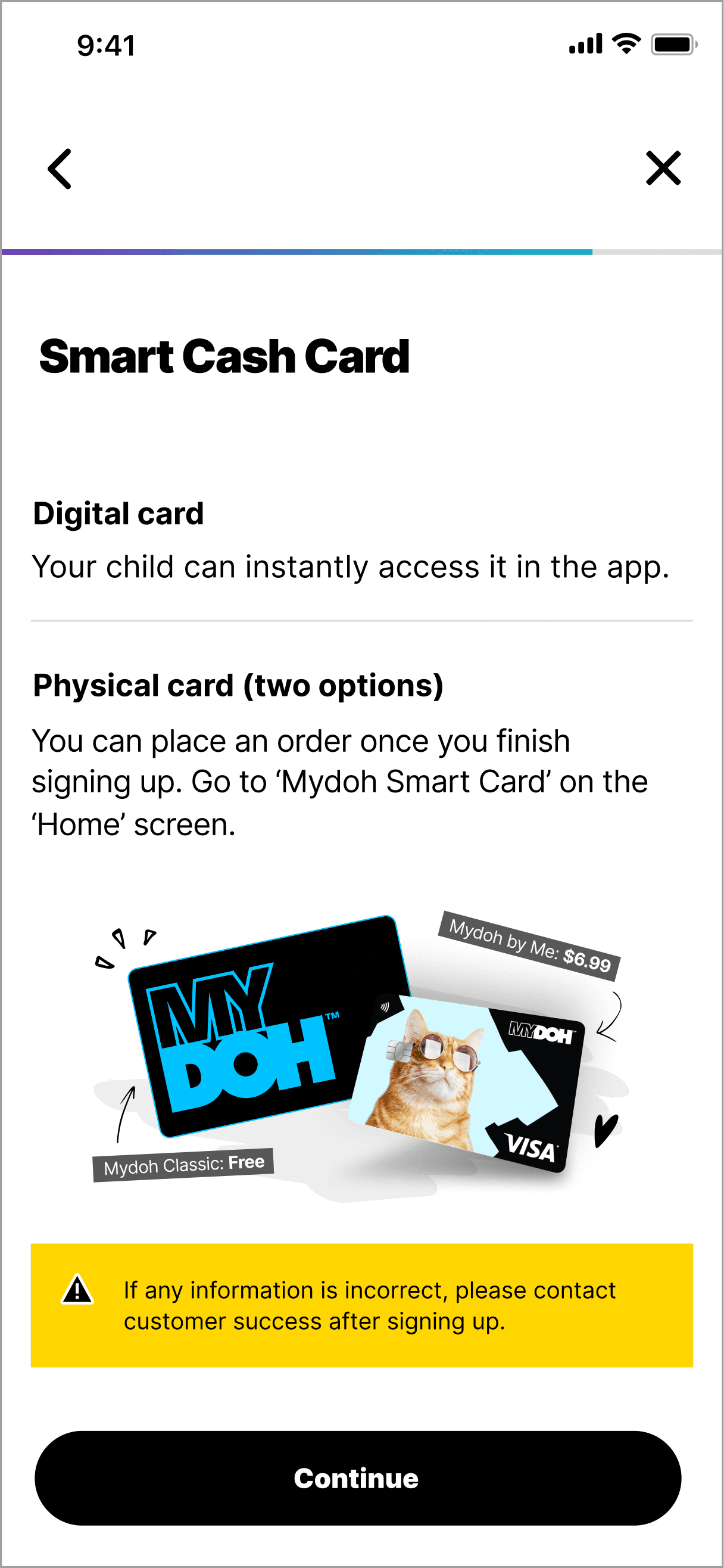
If any information is incorrect, please contact customer success after signing up.

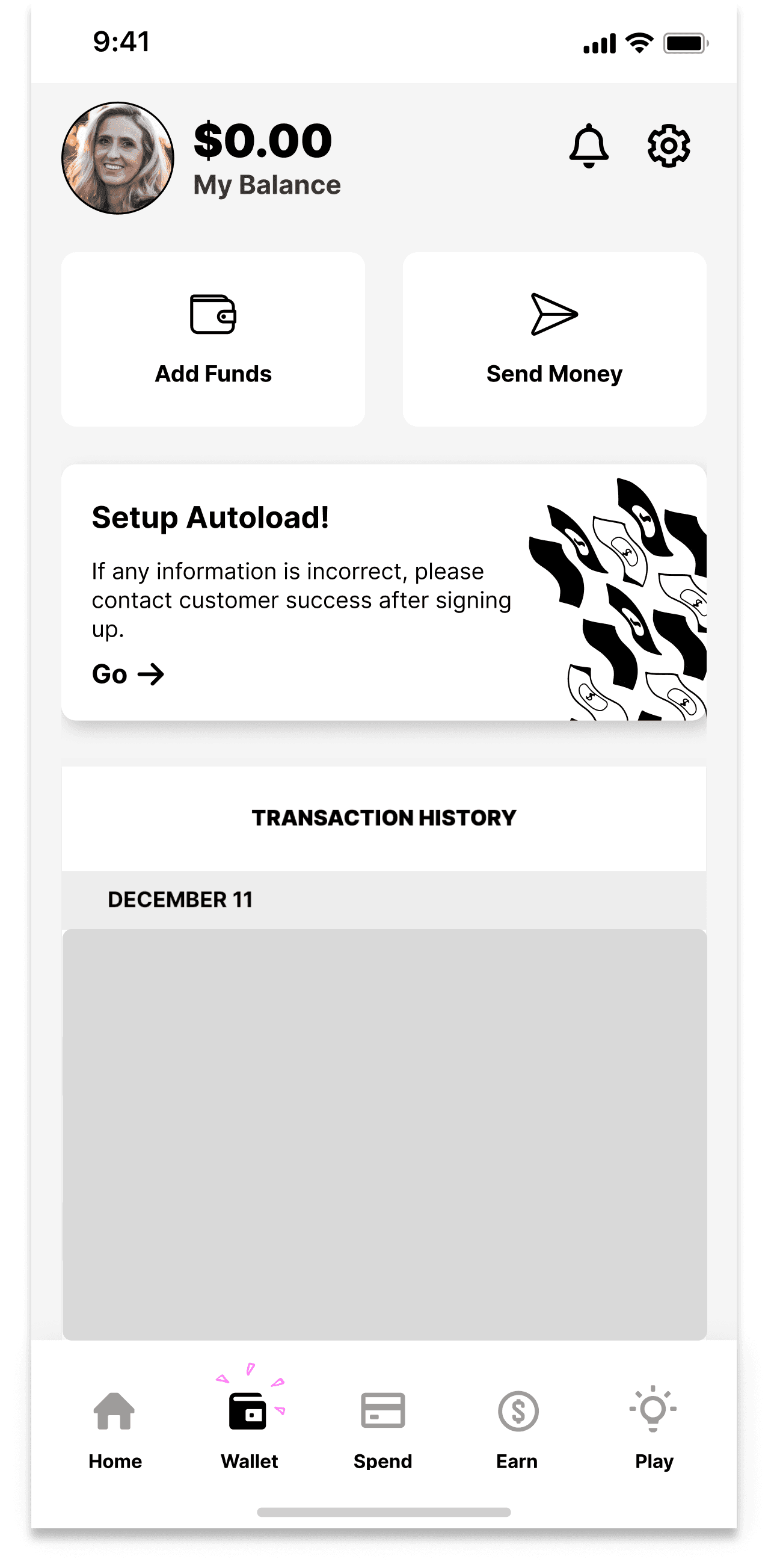
If any information is incorrect, please contact customer success after signing up.

Your digital card has been locked, but you can continue to use your physical card.